A practical guide for staying safe online
You are about to make a purchase on the internet. Everything looks good; the site is attractive, the cost is reasonable, and there is a padlock in your browser’s address bar. You input your credit card number, press the ‘Submit’ button, and feel safe. However, there is one uncomfortable fact: the padlock does not mean what people usually think it means.
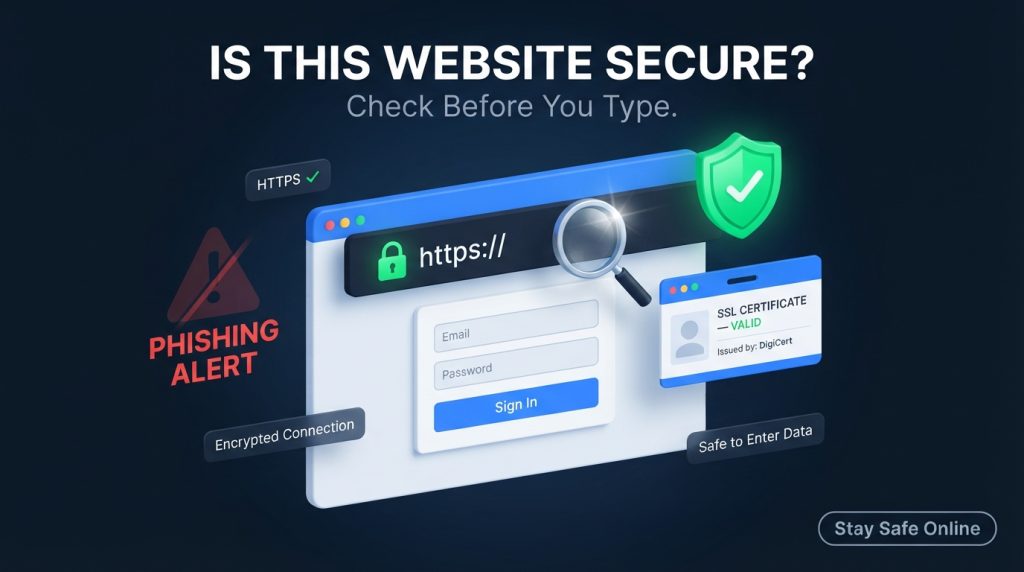
In the research involving almost 1,900 Internet users, it was discovered that 89% of the participants had misperceptions regarding the meaning of the padlock icon; specifically, they thought that the padlock showed the trustworthiness of the website as such, and not merely the encryption of the data exchange process. This is a dangerous misperception, because the fraudsters know about it; they are capable of getting a free SSL certificate within minutes, setting up an attractive fraudulent site and waiting for the victim’s information. The only information you can receive from the padlock is that the data exchange between your browser and the website is encrypted.
This guide will provide you with a holistic approach to SSL. From the basics of HTTPS and SSL certificates to URL forensics and professional tools, we will cover every aspect in a matter of seconds. By the end, you will have your own methodology to determine whether a site is worthy of your data.
Let’s get started.
Why This Matters Right Now
This is no longer a problem limited to niche applications only; for instance, the 2025/26 financial year saw more than 19,400 scam websites in Australia blocked by its ASIC; the number represents 182% increase compared to the previous year, and it was comprised of 7,000 fake investment websites, 5,500 phishing links and 3,000 cases of cryptocurrency fraud.
Moreover, scammers have moved from building fake websites with broken English and logos of poor quality. Instead, modern scammers are using AI generated texts, fake branding and even customer testimonials to make their websites look legitimate. Sometimes, they create the whole ecosystem of articles and social media profiles on behalf of their scam websites.
However, the browsers themselves are changing their policies concerning the security icons; for instance, Chrome changed its traditional padlock to a “tune” icon in some browsers’ versions. In addition, from October 2026, Chrome will automatically enable HTTPS encryption for every website.
The good news is that once you know how to identify insecure sites, it becomes easy for you to recognize such a website. It is a skill not a talent.
The Foundation: What HTTPS Actually Means
Let’s begin with the technology that everybody knows about but few really understand.
HTTPS is short for HyperText Transfer Protocol Secure. What matters is the S in it. When you connect to a web page via HTTPS, your browser establishes an encrypted connection to the server based on an encryption protocol known as TLS (Transport Layer Security). In fact, you may find an older version of this acronym SSL (Secure Sockets Layer), but it has been phased out.
To put it simply, here is what happens when you use HTTPS:
The server of the site sends you its digital certificate, which is a file issued by a third-party company called the Certificate Authority (CA). This certificate performs two roles:
- It serves as proof that the server owns the domain to which you are connecting. Your certificate is linked to the domain name through cryptography.
- It gives you the public key required for encryption. Every piece of information you send from your computer, such as passwords, card numbers, or personal data is encrypted and then decrypted by the server.
If there is no HTTPS, then all your data will be transmitted in plain text. This means that everyone who is on the same network with you can see it.
What HTTPS Does NOT Mean
Here lies the problem. HTTPS does not mean:
- The site is honest
- The business is legitimate
- The information will not be seen by the site’s owner
- The site will not sell your personal data
- The content is accurate and reliable
A phishing site can very easily get an HTTPS certificate and, in fact, almost all do. The only thing that this certificate indicates is that the connection between the website and your device is secure and does not say anything about the legitimacy of the destination.
Imagine it like this; HTTPS assures you of a secure envelope, but does not ensure that the recipient of this information is who he claims to be.
Defense Line Number One: Browser Indicators
The browser offers some indications concerning connection safety. While not 100% reliable, these can serve as an initial clue.
The Address Bar
What do you see on the left side of your browser address bar?
- Padlock icon (or tune icon in Chrome): The connection is protected by the HTTPS protocol. In Chrome, clicking the icon will reveal “Connection is secure” or certificate details. Firefox and Safari show the classic padlock icon.
- “Not secure” or crossed-out padlock: The connection is not encrypted. No personal information should be entered.
- Red warning page: A critical situation when either the browser itself or its safe browsing service has detected the website as a potential threat. Most probably, it is either a phishing site or distributes malicious software. Close the browser window right away.
- No icon at all: The website is likely using the HTTP protocol. Consider the connection unsafe.
The URL Itself
The web address itself can be the strongest indicator of legitimacy if you know how to read it.
- The URL must begin with https://. In case the URL begins with http:// (without the “S”), your connection is unencrypted.
- There must be no typos and substitutions. Cybercriminals enjoy using such domains like paypa1.com (one instead of letter L), arnazon.com, or app1e-support.com. Such domains are called typosquatting domains because they depend on your negligence.
- Check out the domain name instead of the subdomain name. In login.paypal.com.secure-verify.xyz, the true domain name is not PayPal but secure-verify. xyz. What comes just before the first single slash is important.
- Stay away from domains that contain too many hyphens and nonsensical strings. Domains like best-deals-2026-shop-online-now.com are not legitimate.
In any case, you should always hover over the link before opening it. This way, you will see the true destination URL in your browser status bar.
How to Verify Website Certificate (The Actual Verification)
Padlock is just an indicator. What really counts is the actual certificate.
Certificate Verification Using Web Browser
Any browser will allow you to check the complete certificate. How to do it:
Google Chrome:
- Click on the music/padlock icon adjacent to URL.
- Click on “Connection is secure.”
- Click on “Certificate is valid.”
- A pop-up will be displayed with certificate information.
Mozilla Firefox:
- Click on the padlock icon.
- Click on “Connection secure.”
- Click on “More information.”
- Click on “View Certificate.”
Microsoft Edge:
- Click on the padlock or music icon.
- Click on “Connection is secure.”
- Click on the certificate icon to open the certificate information.
In the certificate information window, look out for the following fields:
| Field | What to Check |
| Issued To (Common Name) | Does it match the domain you’re visiting? A certificate for example.com shouldn’t be used on different-site.com. |
| Issued By (Issuer) | Is it a recognised Certificate Authority? Names such as DigiCert, Let’s Encrypt, GlobalSign, Sectigo, and Google Trust Services will help you know that. Self-issued certificates with matching issuer and subject names indicate a risk for public sites. |
| Validity Period | Is your certificate currently valid? Examine the “Not Before” and “Not After” dates. A lapsed certificate would mean that the owner of the site has not renewed it and thus neglected the website. |
What the Certificate Says (And Does Not Say)
Firstly, an authentic and accepted certificate by a recognised CA says that the site is controlled by its owner and they have passed either a minimal verification (Domain Validation certificate) or more advanced verification (Organisation Validation or Extended Validation certificates).
Secondly, it does not say that the site is trustworthy. Scammers frequently get free Domain Validation certificates from Let’s Encrypt and other certification authorities. It confirms only that the user controls the domain.
Decreasing Certificate Lifetime
There is another thing which is rapidly changing. As of March 2026, the CA/Browser Forum restricted the maximum lifetime of publicly trusted TLS certificates to 200 days. This restriction will become even stricter in March 2027 (maximum 100 days) and in March 2029 (maximum 47 days).
So, why should this matter to you? Because managing certificates is going to be a constant task for site owners. When you see that the certificate is close to expiry on some site which you visit regularly, it does not mean that the site is fraudulent but it means that the owner is not doing proper maintenance of their certificate.
Testing the Reputation and Legitimacy of a Website
Certificate testing gives information about the connection. Testing the reputation gives information about the website itself.
Use Reliable Websites to Test for Malicious Content
A number of organisations provide free services to test a website against multiple blacklists. Such services test a website against phishing lists, databases of viruses and malware, and reputational systems.
- Google Safe Browsing: built into Chrome and Firefox browsers; highlights known dangerous websites.
- Microsoft Defender SmartScreen: integrated into Edge browser; tests the reputation of a website domain, its content, and the download of files.
- VirusTotal: scans websites using the scan of many anti-virus engines and feeds of threat intelligence.
- URLVoid: tests a website domain against several databases of blacklists.
- ScamAdviser: determines a trust score based on the age of the website domain, user feedback, and technical characteristics.
- URLScan.io: scans a website and shows its appearance, loaded scripts and where it is redirecting.
Input a URL to the service before inputting your personal data. It will take just seconds.
Verify Domain Age
The new domains are more prone to scams than others. If a domain has been online for 10 years, then it has experience. However, if a domain has been registered only 3 weeks ago, then you have no reason to believe it.
This can be verified using a WHOIS tool. If an online platform says that it is an established business yet its domain is less than a month old, that’s quite an inconsistency.
Look for Trust Signals (with a Critical Eye)
A legitimate website usually has the following:
- Privacy policy page that explains what will be done with your information
- Contact details such as physical address, phone number, and email
- Return/refund policy page for e-commerce websites
- Independent reviews (and not testimonials from their own site)
Here comes the catch. The trust signals are easy to forge. ScamAdviser has openly warned about the forgery of ScamAdviser trust badges. A legitimate trust seal leads to a verification page of the organization that issued the badge. The static picture is meaningless.
Red Flags: What Should Give You Pause
Certain red flags are impossible to miss. If you spot any of these, pause and reconsider.
The website is asking for unnecessary personal information. A website that is offering you a physical product has no need for your social security number. A news website has no business requiring your credit card information just to access an article.
The payment options offered are not typical. Real retailers take credit cards, debit cards, and major payment services such as PayPal or Stripe. If a retailer insists on accepting cryptocurrency, wire transfers, or gift cards, be highly skeptical. These are practically traceless and non-refundable forms of payment.
The offer sounds too good to be true. A 90% discount off of an expensive item, guaranteed returns on investments, or prizes without having entered are all giveaways of a scam. The website uses pressure tactics. “Only 2 items left in stock!” “This offer will expire in 10 minutes!” “Your account will be suspended if you don’t verify immediately!”
It has no proper “About Us” or “Contact Us” page. Or else the details are too vague, general, or lifted from somewhere else. There are spelling and grammatical mistakes all over. This doesn’t mean that it is a fraudulent site as many genuine websites are badly written. But if taken with other symptoms, it is a clear sign of a scam.
Your browser or antivirus alerts you about it. Never ignore these security warnings. If your Chrome, Edge, Firefox or antivirus alerts you about the website, believe it more than your greed to finish the deal.
Corner for Advanced Readers: Diving Deeper with Techniques
For those looking to delve below the browser indicators, let’s look at where the rabbit hole goes.
Certificate Checking via Command Line Using OpenSSL
This is the tool that security experts use for viewing the entire TLS setup of the server if you feel comfortable using a command line.
Check the certificate dates:
bash
openssl s_client -connect example.com:443 2>/dev/null | openssl x509 -noout -dates
It makes a connection to the server on port 443 and reads the validity dates of the certificate. There will be notBefore and notAfter lines.
Check the complete certificate chain:
bash
openssl s_client -connect example.com:443 -showcerts
The -showcerts command shows the whole chain of the certificate from the server’s certificate to the root CA. An example of misconfiguration is when there is no intermediate certificate.
Make sure to check the certificate subject and issuer:
bash
echo | openssl s_client -connect example.com:443 -servername example.com 2>/dev/null | openssl x509 -noout -subject -issuer
The -servername option is needed to enable SNI (Server Name Indication), which is necessary for verifying websites located on shared servers.
Understanding Certificate Types
Certificates are not all the same. There are three different types, which vary in the amount of verification done by the Certificate Authority:
| Type | Validation Level | What It Proves | Typical Use |
| Domain Validation (DV) | Lowest | Control of the domain | Blogs, personal sites, phishing sites |
| Organisation Validation (OV) | Medium | Domain control + organisation existence | Business websites |
| Extended Validation (EV) | Highest | Thorough identity verification | Banks, government, high-value commerce |
Here’s the unpleasant reality: modern web browsers no longer display any visual difference between DV, OV, and EV certificates in the URL bar. That green bar that used to represent an EV certificate is not seen anymore in almost all modern browsers. The padlock icon is the same regardless of whether you are dealing with a legitimate bank website or with a malicious phishing site which just received a free certificate 20 minutes ago. All the information is there you only need to click on it.
Self-Signed Certificates and Their Importance
In self-signed certificates, the issuer and the subject are the same. The site owner generated the certificate himself without it being verified by a trusted CA.
For private corporate use and software development, self-signed certificates are common and acceptable. In public sites, however, such certificates are a serious sign of poor security. You can be pretty sure that your browser is going to block this site.
Never disable the self-signed certificate warning if the site is not yours.
Mixed Content: The Unseen Threat
A web site can be loaded using HTTPS protocol but still have security problems if some of its resources (images, scripts, stylesheets) are loaded using HTTP protocol. This condition is known as “mixed content” and it means that the security of the whole web site is broken. A hacker who can intercept the data loaded via HTTP could modify the page or access sensitive information.
The most critical cases of mixed content are automatically blocked by browsers but not all of them. You can verify the presence of mixed content yourself by opening the developer console of your browser (F12) and checking the Console tab.
How Phishing Detection Really Works Under the Hood
The software you use uses highly advanced machine learning technology. It’s good to know what they are checking since it gives you a better insight into why each check alone isn’t infallible.
Phishing detection technology in the modern day looks at several dozen different characteristics of the web page as well as its URL. They include:
- Lexical Features: Length of the domain name, presence of hyphens, use of IP addresses instead of domain names, shady top-level domain.
- Host-Based Features: Age of the domain, WHOIS registration, SSL issuer and expiration.
- Content-Based Features: Presence of login pages, presence of obfuscated JavaScript, similarity to legitimate brand pages.
- Reputation Features: Presence on blacklists, traffic history, reported phishing sites.
The machine learning models using algorithms such as XGBoost or Random Forest are trained on datasets that contain millions of URLs to detect patterns related to phishing. Some recent research has been able to detect phishing sites with accuracy levels of around 92% to 99%.
However, the crucial point is that these algorithms are not perfect; there is always a chance of having a false positive result. Not only could a legitimate site get flagged but an experienced attacker could even craft a phishing site in order to bypass the algorithm.
A Practical Checklist You Can Implement Right Away
This is a sequence of actions which you can take prior to inputting your data on any website.
Before Inputting Any Information
- Check the URL. Does it begin with https://? Is the domain correct? Is it the domain you wanted to visit?
- See what browser tells you. Padlock or a little tune icon means encryption; “not secure” message or a red warning icon means don’t proceed further.
- Click the padlock/tune icon. Verify the certificate information. Does the common name correspond to the domain name? Does the issuer belong to the trusted CA list? Is the certificate still valid?
- Evaluate the age of the domain name. Perform a WHOIS query. The younger it is, the more cautiously should you approach it.
- Perform reputation check. Copy-paste the URL into Google Safe Browsing, VirusTotal or URLVoid services.
On the Website Itself
- Search for the Privacy Policy. Do you see an explanation of what will be done with your data?
- Search for the contact details. Can you find an actual postal address, phone number, and email?
- Evaluate the payment options. Are they normal and refundable? Unusual payment methods (cryptocurrency, gift cards, bank transfers) are suspicious.
- Analyze the content of the website carefully. Do you see any grammar mistakes? Empty promises? Pushing? Too good prices?
- Listen to yourself. If you feel something is wrong, chances are it is wrong. Don’t hurry to act now, do some research first.
In Case You Have Entered Information
In case you realise that you have entered information on a doubtful website:
- Change the password right away in any account that has the same login details.
- Contact your bank in case you have entered payment details.
- Enable two-factor authentication in affected accounts.
- Notify the website via Google Safe Browsing and Consumer Protection Agencies of your locality.
The Future of Website Security Certification
There are several areas of change. Certification is lasting for shorter periods than ever. As noted, by 2029 we are expected to see certificates lasting 47 days. Thus, manual certification is becoming unworkable, and automated processes will have to be developed by website owners. In terms of end-users, it means that certificates are renewed much more often, which is positive but also that “valid” certificate gives little information regarding the trustworthiness of the site.
Browsers become more proactive in their approach to website safety. For example, Chrome has started using its HTTPS-First mode in the year 2026 and will continue implementing it fully by the fall of 2026, trying to establish connections through HTTPS and showing warnings in case of failure. Also, tools like Edge’s SmartScreen and others are becoming more advanced in terms of domain reputation and page content analysis.
Both sides of the struggle make use of AI capabilities. AI makes creation of scam content easier. AI detects it faster.
Passkeys and passwordless authentications are decreasing the value of the stolen credentials. If a website is compatible with passkeys (and a number of large platforms support that), you don’t even have to worry about phishing as you cannot be phished since there is no password anymore.
Regulatory requirements are getting tighter. In some industries (finance, healthcare, government services), governments require stronger security standards, raising the bar for all. But regulatory compliance does not mean security; it just means a minimum standard.
Conclusion
There is one big thing about web security: you never just do it and forget it forever. Web security is an habit, a habit that can be formed and nurtured and carried around each time you open a new browser window.
Do not think that the padlock will protect you from anything. It is quite possible that the “Not secure” warning will help, as long as you listen to it. Also, there is no single tool that will make your computer invulnerable to all kinds of threats Google Safe Browsing, VirusTotal or even your antivirus program. They miss some threats but catch others, and used together, in combination with your personal common sense, create a defence that is very hard to crack.
The main mental change is required here. Forget about web security as something that the browser does for you. Think about it as a dialogue between yourself and a particular website, a dialogue in which you have a right to ask some questions before answering any other. The fraudsters will hope that you do not ask those questions. They will hope for speed, confusion, and the certainty that the padlock icon means you are safe. Each question you ask is resistance, and resistance adds up.
You do not have to be a security expert to surf the net securely. All you need is deliberation. Take a moment before typing. Click the padlock icon. Note the URL address. Follow your instincts. It only takes thirty extra seconds, but it could save you hours of frustration, hundreds of dollars, or even worse. The internet is a phenomenal place filled with truly legitimate and useful services. Unfortunately, it is also a place teeming with people eager to take advantage of your trust. It can sometimes be difficult to tell one from the other, but now you know what to look for. Use it wisely.
Stay curious, stay skeptical, and stay safe out there.
Explore Our Cybersecurity Category. And if you are reading it up to here, leave a sweet comment to motivate us to write blog everyday.