You’ve been there, done that a million times. You grab a coffee, find a spot, and your phone or laptop pretty much automatically looks for Wi-Fi: Cafe_Guest, Airport_Free_WiFi, Hotel_Lobby etc. A couple of clicks and boom, you’re online. You check emails, scroll through social media, maybe even hop onto your bank app to move some money around fast. It feels super convenient, a nice little extra. But it could also be a digital trap, ready to swallow your personal and money info.
Public Wi-Fi is a mixed bag in our digital world. It offers amazing internet access, saving us from using up our phone data or being stuck without a signal. Still, this helpfulness comes with big, often hidden, risks. Knowing these dangers isn’t about becoming paranoid it’s about being smart with your digital habits. This post will talk about the shady side of open networks, the sneaky ways cybercriminals use them, and most importantly, simple, strong steps you can take to keep yourself safe.
Public Wi-Fi Risks: How Open Networks Actually Work
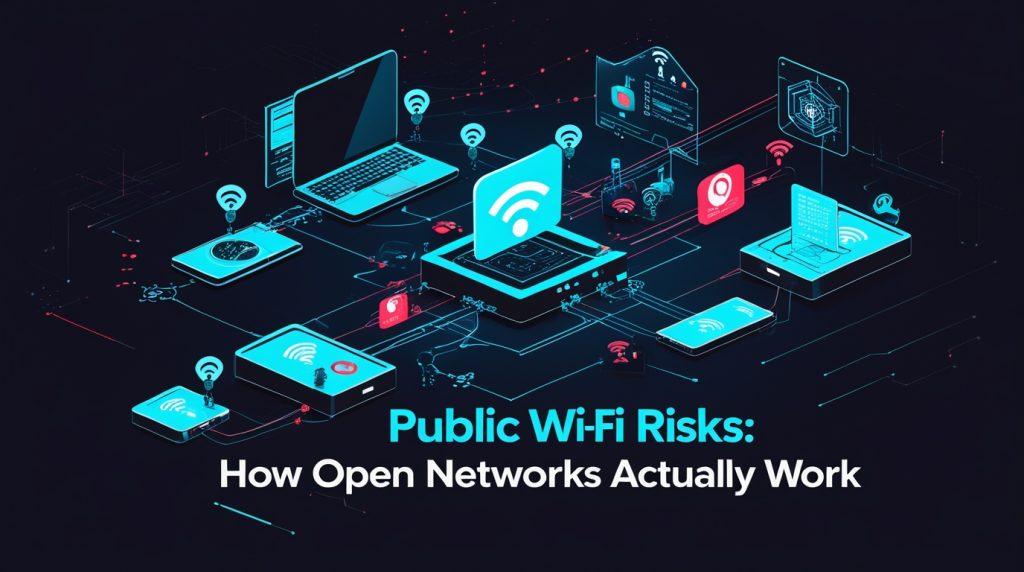
The main problem comes from one simple thing: most public Wi-Fi networks aren’t encrypted. Think of encryption like a secret, sealed tunnel for your data. On your home network, your info travels through this tunnel, all jumbled up so no one can read it. On an open public network, your data is often sent out in the clear like a postcard anyone can read as it goes by.
This missing secure tunnel makes it easy for different kinds of attacks:
1. The Man-in-the-Middle (MITM) Attack: The Digital Snoop
This one is super common. A hacker gets in between your device and the internet. You think you’re going straight to a website, but your request actually goes through the attacker’s device first. They can see everything: all your login details, every message, every credit card number you type. Tools for MITM attacks are really easy to find and use, even for less skilled criminals.
2. The Evil Twin Attack: The Perfect Imposter
This is a really sneaky trick. A hacker sets up a bad Wi-Fi hotspot with a name that looks real like Starbucks2 right next to the actual Starbucks_Guest, or Airport_Free_WiFi when the real one is Airport_WiFi_Free. People who don’t know better connect to the seemingly stronger, faster fake signal. Once you’re connected, all your data goes straight to the hacker. They can even make a perfect fake page of your bank’s login screen to steal your details.
3. Packet Sniffing: The Digital Wiretap
Using free software, hackers can sniff the data moving across an open network. This isn’t aimed at one person; it’s like casting a wide net to catch anything that’s not encrypted. While a lot of web traffic uses encryption now (HTTPS), not all apps do. That casual game, weather app, or some older websites might send your data in a readable form, which sniffer programs can grab and check out for useful info.
4. Malware Stuff: The Bad Present
Some messed up or fake networks can push bad software onto your device. If the network’s defenses are weak, an attacker might use flaws in your computer’s system or other software to install spyware, ransomware, or keyloggers without you knowing. Just clicking on a bad ad served through that network can sometimes do it.
5. Snooping and Shoulder Surfing: The Low-Tech Threat
Don’t forget the old ways. Someone simply looking over your shoulder can see your passwords or PINs. Also, the person running the public Wi-Fi be it a coffee shop owner or a hotel IT person could, in theory, watch the traffic on their own network.
It’s Not Just Coffee Shops: Where These Dangers Hide
It’s not only cafes and airports. Any free Wi-Fi can be risky:
- Hotels and Airbnb’s: People traveling are extra vulnerable, often in a hurry to get online.
- Airports and Train Stations: Busy places where people are often sidetracked.
- Public Libraries and City Wi-Fi: People often trust these because they’re linked to the government.
- Malls and Stores: Networks like Customer_WiFi are easy targets.
- Conferences and Shared Workspaces: Where people might be talking about or looking at important work stuff.
Safe Browsing Toolkit: How to Stay Secure on Public Wi-Fi
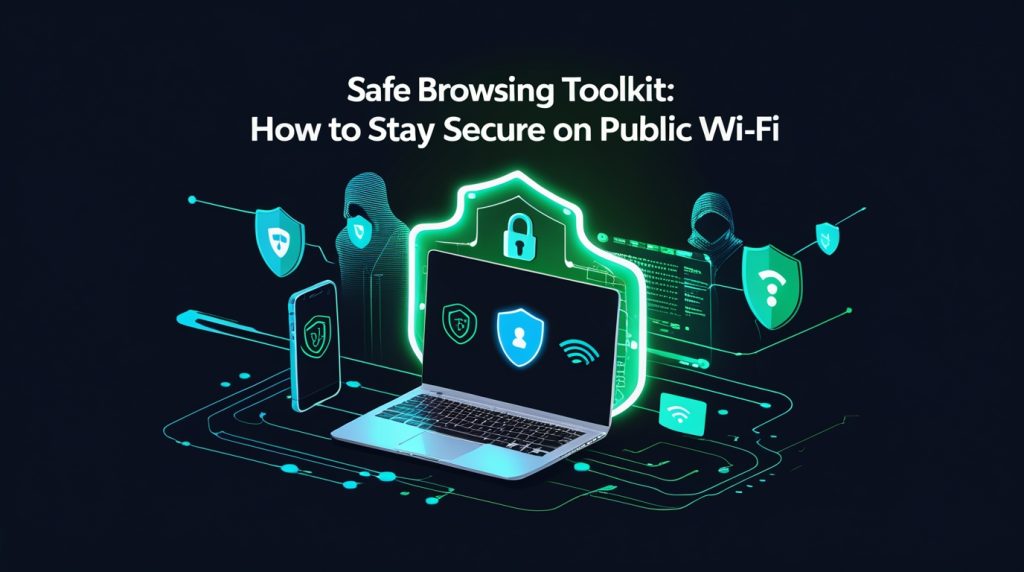
Knowing the risks is the first step. The next is having strong tools and good habits. You don’t need to be a computer genius to do these things.
1. The Must Have: Use a Virtual Private Network (VPN)
If you only grab one thing from this post, make it this: A good VPN is your best shield on public Wi-Fi. A VPN makes that encrypted tunnel we talked about, even on an open network. It sends all your internet traffic through a secure server, hiding your IP address and scrambling your data so anyone trying to snoop from a random hacker to the Wi-Fi provider only sees nonsense.
- Picking a VPN: Go for a paid, well known service (like NordVPN, ExpressVPN, ProtonVPN). Free VPNs often have limits, are slower, and might even make money by selling your data which defeats the whole point.
- How to use: Turn it on before you connect to public Wi-Fi. Make it a habit. A VPN is key for anything involving your personal details.
2. Always Check: Is This Network Real?
Always ask a staff member for the exact name of the official Wi-Fi network. Be careful of networks with generic names or small spelling mistakes. If you see two very similar network names, it’s a big warning sign for an Evil Twin attack. If you connect and see a weird login page asking for too much personal info, disconnect right away.
3. Use HTTPS: Look for the Lock
Make sure the websites you visit use HTTPS (look for the little lock icon in the address bar). This means the connection between your browser and that site is encrypted. But remember, this only protects that specific website visit, not your overall connection. A MITM attacker could still see which HTTPS sites you go to, even if they can’t see what’s on them.
4. Change Your Settings: Turn Off Auto Connect
Stop your device from auto connecting to open networks. This keeps your phone or laptop from announcing its presence and automatically jumping onto a bad network without you agreeing. Pick networks yourself when you need them.
5. Watch What You Do: Be Smart
Try to use public Wi-Fi mainly for things that don’t require logging in. Use it to check the news, read articles, or listen to music. Save risky things like online banking, shopping, checking health info, or important work emails until you’re on a trusted, private network. If you absolutely have to log in, use your cell data (4G/5G) instead, which is usually safer.
6. Bulletproof Your Device: Firewalls and Updates
Make sure your device’s firewall is on (it usually is by default). Even more important, keep your computer system, browser, and all apps updated. Software updates often fix important security flaws that hackers love to use. Turn on automatic updates if you can.
7. Use Two-Factor Authentication (MFA) Everywhere
This is a really important backup. If a hacker somehow gets your password, MFA stops them cold. They would need that second thing a code from an app, a text message, or a fingerprint to get in. Never rely only on a password.
8. Think About a Privacy Screen
A simple screen filter for your laptop makes it almost impossible for anyone not right in front of you to peek over your shoulder. It’s a cheap and very good tool, especially in crowded places.
9. Forget the Network When You’re Done
Once you’re finished, tell your device to forget the public network. This stops it from connecting again automatically later and keeps your network list tidy.
10. For Maximum Safety: Use Your Phone’s Hotspot
When doing really sensitive stuff on the go, your smartphone’s personal hotspot is almost always safer than public Wi-Fi. It uses your cell data, which is encrypted and linked to you, making it much harder for random hackers to target.
A Special Note for Travelers and Remote Workers
If you work remotely or travel a lot, the stakes are higher. Your devices might have client data, work logins, and private messages.
- VPN is a Must: A work or personal VPN isn’t an option, it’s essential.
- Separate Work Device: If you can, use a different device for work that has stronger security and no personal browsing.
- Encrypt Your Hard Drive: Use tools like BitLocker (Windows) or FileVault (macOS) so if your device gets stolen, the data can’t be read.
- Be Careful with Public Charging Stations: Bad USB ports can install malware or steal data. Use a wall outlet with your own charger, or use a “USB data blocker” a small, cheap thing that only lets power through.
The Head Game: Being Smartly Suspicious
Staying safe is as much about how you think as it is about technology. We’re used to wanting to be online. Fight that urge with a quick pause. Ask yourself: Do I really need to do this now? Can it wait? Always be a little bit suspicious of free Wi-Fi. See it not as a friendly freebie, but as a possible risk. This doesn’t mean you can never use it, it means you use it smartly, with your digital defenses up.
Wrapping Up
The point here isn’t to scare you away from public Wi-Fi forever. That’s not practical or needed. The point is to replace blind trust with smart caution. The dangers are real, but you can mostly avoid them.
Think of your online security like layers of Swiss cheese. No single slice is perfect (each has holes), but when you stack them a VPN (slice 1) on top of HTTPS browsing (slice 2) on top of updated software (slice 3) on top of two-factor authentication (slice 4) the holes line up less and less, creating a strong wall.
Public Wi-Fi is a tool, like a city bus. It’s super helpful for getting around, but you stay aware of your surroundings, keep your wallet safe, and don’t tell your secrets to a stranger next to you. By knowing the threats and having the right tools especially a good VPN and being aware of what’s going on you can get the good out of public Wi-Fi without giving up your privacy and safety. You can handle the online world not with fear, but with confidence and control.
So next time you see that tempting “Free_WiFi” signal, you’ll know exactly what to do: stop, think, and connect on your own, safe terms. Your digital self will be happy you did.
Explore Our Cybersecurity Category