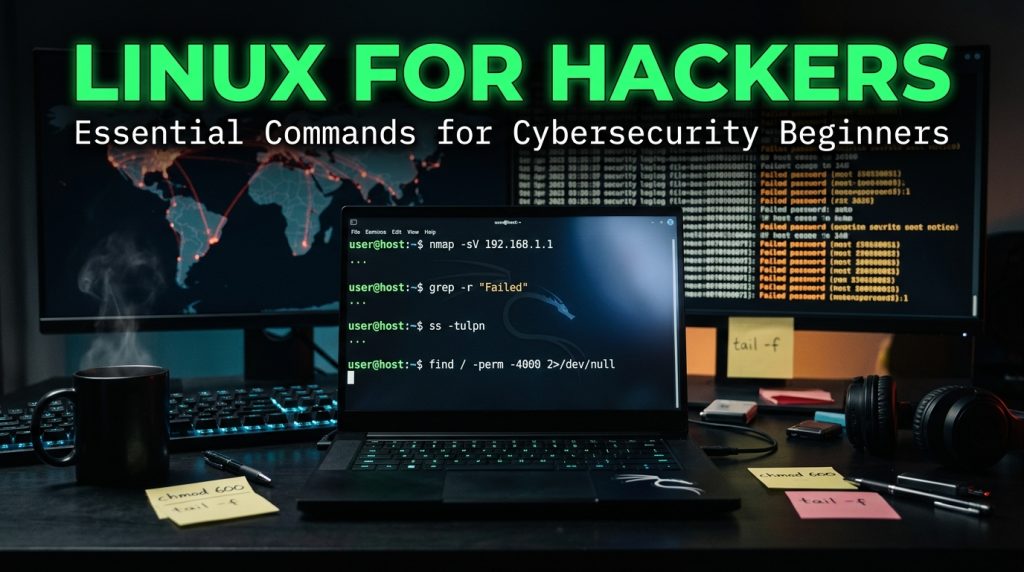
Why the Terminal Still Rules Cybersecurity
It is likely that if you have ever observed how penetration testers and SOC analysts work, you have seen the following thing: they spend practically all their time in a black box with green text. Nothing else. No graphical user interface. No mouse. Just typing. And there is a reason behind this.
Even though the Linux command line dates back to the 1970s, it is the ultimate tool for system management and analysis. There are a lot of benefits in using graphical interfaces for many processes, yet when it comes to diving deep into a system, analyzing a million lines of logs, or responding to a situation in mere seconds, nothing compares to the terminal.
The thing is that Linux operates the very foundations of the internet: most web servers, cloud infrastructure, and security software operate on Linux. The famous penetration testing OS Kali Linux? Yes, it is based on Linux. Therefore, if you are really interested in a career in cybersecurity, be it penetration testing, SOC analysis, incident response, or anything else, Linux is a must-have.
A Quick Word on Shells (Before We Start Typing)
By running a terminal, one interacts with the shell program. The shell is responsible for parsing user commands and instructing the kernel of the operating system about what to execute.
In Linux, the most widespread shell is called Bash (short for Bourne Again Shell). This is an improved version of the classic Unix sh shell used in all modern Linux distributions. In addition to Bash, other shells exist, such as zsh, fish, and ksh. However, Bash remains the standard shell that users must know.
What is important in the context of security? Well, because the shell doesn’t just run commands. Rather, it allows commands to be chained using pipes, redirections, and automation through shell scripts. That is why the command line becomes so useful in the context of security operations.
Part 1: Navigating the File System (Absolute Basics)
You cannot do any security task without navigating through the file system. This is the starting point.
pwd: What is my location?
bash
pwd
Print Working Directory. It will tell you exactly which part of the filesystem you are currently working in. It might seem very obvious, but from a security perspective, particularly when performing an incident response, knowing your exact current location is crucial to avoid any possible mistakes.
Example Output:
text
/home/kalils: List Files (and Spot Anomalies)
bash
ls -lah
The ls contents lists of a directory. But options play a critical role in security.
- -l: Long format (shows permissions, owner, size, and modification time)
- -a: Lists all files, including hidden files (. starts a hidden file)
- -h: Human readable file sizes (KB, MB, GB)
The ls-lah command is what you need when it comes to quick recon of a directory.
Use case of security: You are dealing with a hacked machine. You run ls -lah against /tmp and see a file belonging to www-data and having executable permission in a directory where no application should write.
Here’s what the output tells you:
text
-rwxr-xr-x 1 www-data www-data 1.2K Jan 15 03:42 suspicious.sh-rwxr-xr-x: Permissions (owner can read/write/execute, group and others can read/execute)www-data www-data: Owner and group1.2K: SizeJan 15 03:42: Last modified (3:42 AM is suspicious for a web server)
cd: Change Directory
bash
cd /etc
cd ~
cd ..
cd -
cd /etc: Go to the/etcdirectory (system configuration files)cd ~: Go to your home directorycd ..: Go up one levelcd -: Go back to the previous directory
Security case study: You will be spending most of your time in /etc (configuration files), /var/log (logs), and /tmp (temporarily used by attackers).
Part 2: Working with Files (Creating, Viewing, Finding)
touch and mkdir: Create Files and Directories
bash
touch newfile.txt
mkdir evidence_folder
mkdir -p incident_2024/evidence/logs
touch creates an empty file. mkdir creates a directory. The -p flag creates nested directories in one go.
Security scenario: You may have a need to establish a separate folder where you place all the evidence prior to copying logs and suspicious files.
cat, less, head, tail: View File Contents
bash
cat /etc/passwd
less /var/log/syslog
head -20 access.log
tail -f /var/log/auth.logcat: Dump the whole file on the screen. Good for smaller files.less: Go through larger files. Press Space to go to the next page; press q to quit.head: Display first N lines (default 10).tail: Display last N lines. The option -f stands for “follow”; it means you get updates in real time.
Example of security usage: tail -f /var/log/auth.log is probably the most popular command used by SOC analysts. You see everything that happens regarding authentication in real time. From failed password attempts to successful login or even sudo actions.
grep: Search Inside Files (Your Best Friend)
bash
grep "Failed password" /var/log/auth.log
grep -r "password" /var/www/html/ --include="*.php"
grep -oE '[0-9]{1,3}\.[0-9]{1,3}\.[0-9]{1,3}\.[0-9]{1,3}' access.log
grep searches for patterns in text. It’s arguably the single most important command for log analysis and threat hunting.
-r: Recursive search (search all files in a directory)-i: Case-insensitive-o: Only print the matched part-E: Extended regex (for patterns like IP addresses)
Use case in security: You suspect a web shell running on your server. A fast recursive grep for some dangerous PHP functions will show you that:
bash
grep -r "eval\|base64_decode\|system\|exec" /var/www/html/ --include="*.php"
Another Example: IP addresses extraction from the log file for identifying sources of brute-forcing attacks:
bash
grep "Failed password" /var/log/auth.log | grep -oE '[0-9]{1,3}\.[0-9]{1,3}\.[0-9]{1,3}\.[0-9]{1,3}' | sort | uniq -c | sort -nr
That pipeline counts failed login attempts by IP and sorts them by frequency.
find — Locate Files by Criteria
bash
find / -name "*.conf" 2>/dev/null
find / -perm -4000 -type f 2>/dev/null
find /home -mtime -7 -type f
find /var -size +100M
find Command is very powerful. It can locate files based on their names, size, permission, modification date, etc.
-name: Search by filename (supports wildcards)-type f: Search only files (not directories)-perm -4000: Files with the SUID bit set-mtime -7: Modified within the last 7 days-size +100M: If the files are larger than 100 MB2>/dev/null: Suppresses permission denied errors (crucial when searching from/)
Security case study: The SUID bit is an excellent source for privilege escalation. A file that is owned by root and marked SUID will execute under root privileges no matter which user executes it. Incorrectly configured SUID files are one of the most frequent privilege escalation vectors used by attackers.
bash
find / -perm -4000 -type f 2>/dev/null
This one line is considered an integral step in performing Linux privilege escalation enumeration.
Part 3: Permissions and Ownership (Security of Linux, in Its Own Right)
Permissions in Linux make up the backbone of security in the system. You need to understand permissions if you want to be aware of any weaknesses in your system configuration.
How Permissions Are Set
Each file and directory is made up of three permission settings:
- Owner (u): the person who owns the file
- Group (g): the group to which the file belongs
- Other (o): everyone else
There are three types of permissions:
- r (read): value 4
- w (write): value 2
- x (execute): value 1
rwxr-xr-x will give you:
- Owner: rwx (7)
- Group: r-x (5)
- Other: r-x (5)
Total: 755.
chmod: Change Permissions
bash
chmod 755 script.sh
chmod 600 ~/.ssh/id_rsa
chmod o-w /etc/configuracao.conf755: Standard for executables and directories600: Critical for SSH private keys. Only the owner can read/writeo-w: Remove write permission for “others.”
Use case in security: An SSH private key with file permissions set to 644 (meaning anyone can read it) is a security risk. SSH will simply not accept any key that has permissions greater than 600. Remember always to:
bash
ls -la ~/.ssh/
If you see -rw-r--r-- for id_rsa, fix it immediately:
bash
chmod 600 ~/.ssh/id_rsachown: Change Ownership
bash
chown root:root /var/log/app.log
chown www-data:www-data /var/www/html/
Changes the owner and group of a file. Incorrect ownership, like a web-accessible file owned by root when it should be owned by www-data can create security issues.
ls -l: The Permission Audit
bash
ls -l /etc/passwd
ls -la /var/www/html/
Security use case: A configuration file with database access information, which is readable by everyone (644 or even 666), is a finding. Reviewing file permissions is something that every system audit includes.
Part 4: Process and System Monitoring
ps: List Processes
bash
ps aux
ps auxf
ps aux | grep pythona: Show processes for all usersu: Display user-oriented formatx: Include processes not attached to a terminalf: Show process tree (parent-child relationships)
Example of security use case: You observe an abnormal amount of CPU activity on your server. The result of the command ps aux is kworkerds, which is a name similar to legitimate kernel processes, but it is a malware masquerade, and it is located in /tmp.
bash
ps aux --sort=-%cpu | head -10
This shows the top 10 CPU-consuming processes useful for spotting cryptominers.
top / htop: Real-Time Process Monitoring
bash
top
htop
The top is almost always installed on any Linux computer. HTop is another option that is even easier to understand (installation might be necessary). Both programs display real-time statistics on process activity, CPU usage, memory usage, and load average.
Example security-related use case: when investigating an incident, top helps spot suspicious processes that consume too many system resources. However, more sophisticated malware can avoid detection by top, as it modifies /proc.
lsof: List Open Files
bash
lsof -i :80
lsof -i
lsof +D /lib
lsof reveals the processes that have files open, even network sockets. This proves incredibly handy when looking for the process listening on a port or the process using an unusual file.
Use case in security: You notice an odd connection from an external IP address. lsof -i tells you which process created it.
bash
lsof -i :4444
The Metasploit reverse shell uses port 4444. If anything is listening or active on port 4444, it must be checked right away.
Part 5: Networking Commands (Your Recon Toolkit)
ip and ifconfig: Network Interface Information
bash
ip a
ifconfig
ip is the successor to ifconfig. Both display IP address, MAC address, and interface status.
Security use case: First thing to do before assessing the internal network. What are the networks that this host belongs to? What is its IP address? Is there another interface?
ss and netstat: Active Connections
bash
ss -tulpn
netstat -tulpn
-t: TCP-u: UDP-l: Listening sockets-p: Show process using the socket-n: Numeric (don’t resolve hostnames)
ss is the current successor to netstat even though netstat is still used in many systems.
Security scenario: Any listening port that seems unfamiliar could be a backdoor. Connection to an unknown external IP address on any non-default port may be a command and control (C2) channel.
bash
ss -tn state established
This shows only established TCP connections filtering out the noise of listening ports.
curl and wget: HTTP from the Command Line
bash
curl -I https://example.com
curl -O https://example.com/file.txt
wget https://example.com/file.txt
curl -I: Fetch only headers (great for reconnaissance)curl -O: Save to filewget: Download utility
Use case related to Security: Analysis of HTTP headers can lead you to find out server software, security headers, and any configuration issues. In the process of assessing something, you may use curl to communicate with APIs.
bash
curl -I http://target.com
Look for headers like Server:, X-Powered-By:, and missing security headers (Strict-Transport-Security, Content-Security-Policy).
ping and traceroute: Connectivity Testing
bash
ping -c 4 8.8.8.8
traceroute example.com
Basic network diagnostics. ping tests reachability. traceroute shows the path packets take.
Security use case: Determining if a target is alive and mapping network topology.
Part 6: Users, Groups, and Authentication
whoami and id: Who Am I?
bash
whoami
id
whoami shows your current username. id shows your user ID, group ID, and all groups you belong to.
Security use case: Once a system is compromised, the next step to determine would be “Who am I running as?” This question can be answered using the command whoami. If the user is part of any group of privilege users, such as sudo or docker, then id can help.
who, w, last: User Activity
bash
who
w
last
lastlogwho: Currently logged-in usersw: Same, plus what they’re doinglast: Recent login historylastlog: Last login for each user
Security use case: Detecting unauthorized access. In case w is showing a user logging in from an unfamiliar IP address, then that is an incident.
bash
last | head -20
Review the last 20 logins. Look for:
- Logins at unusual times (3 AM)
- Logins from unexpected IPs
rootlogins (should typically be restricted)
sudo: Elevated Privileges
bash
sudo apt update
sudo -l
sudo runs a command as root (or another user). The -l flag lists what commands the current user is allowed to run with sudo.
Security Use Case: The command “sudo -l” is a basic privilege escalation test. Sudoers configuration vulnerabilities that permit running programs such as vim and less with root privileges can help one escalate to a root shell.
Part 7: Log Analysis (Where the Truth Lives)
Logs are the primary source of truth in security. Attackers can delete them, but they often don’t—or can’t. Being able to read logs efficiently is a superpower.
Key Log Locations
/var/log/auth.log: Authentication events (Debian/Ubuntu)/var/log/secure: Authentication events (RHEL/CentOS)/var/log/syslog: General system messages/var/log/apache2/access.log: Web server access logs/var/log/apache2/error.log: Web server errors
Practical Log Analysis
Find failed SSH logins:
bash
grep "Failed password" /var/log/auth.log
Count failed logins by IP:
bash
grep "Failed password" /var/log/auth.log | grep -oE '[0-9]{1,3}\.[0-9]{1,3}\.[0-9]{1,3}\.[0-9]{1,3}' | sort | uniq -c | sort -nr
Find successful logins after failures (potential successful brute-force):
bash
grep "Accepted password" /var/log/auth.log
Watch authentication events in real-time:
bash
tail -f /var/log/auth.log
This is the SOC analyst’s bread and butter. You see every authentication attempt as it happens.
awk and sed: Text Processing Power Tools
grep finds lines. awk and sed manipulate them.
awk example extract specific fields:
bash
awk '{print $1, $9}' /var/log/apache2/access.log | head
This prints the IP address (field 1) and status code (field 9) from an Apache access log.
sed example find and replace:
bash
sed 's/old_pattern/new_pattern/g' file.txt
Security use case: awk is perfect for parsing structured logs. Want to see all 404 errors?
bash
awk '$9 == 404' /var/log/apache2/access.log
Want to count requests by IP?
bash
awk '{print $1}' /var/log/apache2/access.log | sort | uniq -c | sort -nr | head
Advanced Corner: Exploring Further
Now that you have covered the basics, let’s take it a bit further.
The Power of Pipes and Redirection
Unix philosophy dictates that “Do one thing and do it well.” With the shell, you can chain commands in a pipeline to do complicated stuff.
bash
command1 | command2 | command3
The output of command1 becomes the input of command2, and so on.
Example a mini incident response workflow:
bash
# Find all SUID binaries, filter for unusual ones
find / -perm -4000 -type f 2>/dev/null | grep -vE '^/(bin|sbin|usr/bin|usr/sbin|usr/lib)' | head -20
This finds SUID binaries outside standard system directories often a sign of privilege escalation backdoors.
xargs: Building Commands from Lists
bash
find /tmp -name "*.sh" -type f | xargs ls -la
find / -name "*.log" -size +100M 2>/dev/null | xargs -I {} du -h {}
xargs takes input and passes it as arguments to another command. The -I {} syntax lets you place the input at a specific point.
history: Your Command History (and How It Can Betray You)
bash
history
history | grep ssh
Bash history is the log of all the things you have done. In a security perspective, it is both advantageous and harmful:
- For you: Ability to quickly recall complicated command executions that you may have done
- Against you: When a hacker obtains access, your history becomes his guide on what he should do next
Tip: Always be conscious of the commands you execute because they could end up in your history file.
chattr: Make Files Immutable
bash
sudo chattr +i /etc/passwd
sudo chattr -i /etc/passwd
The +i attribute will make the file immutable, so even root cannot alter or delete the file unless the attribute is first removed.
Application in security: To protect system critical files from any modification. A few hardening documents have suggested to make /etc/passwd, /etc/shadow, and other configuration files immutable on a live server.
Base64 Encoding (and Why Attackers Love It)
bash
base64 -w 0 file
echo "c2VjcmV0" | base64 -d
Base64 is an encoding method that isn’t encryption. It converts binary data into text. Base64 is used by attackers to disguise their payloads and to transfer data.
Use for defense: If you find base64 encoded strings in logs or suspicious files, try decoding them:
bash
echo "encoded_string" | base64 -d
The openssl Toolkit
bash
openssl s_client -connect example.com:443
openssl x509 -in cert.pem -text
openssl genrsa -out key.pem 2048
OpenSSL is a cryptographic toolkit. From a security perspective:
s_client: Connect to a TLS service and inspect the certificatex509: Parse certificate detailsgenrsa: Generate RSA keys
Security use case: Inspecting TLS certificates for misconfigurations, expired certs, or weak key sizes.
Common Pitfalls (and How to Avoid Them)
1. The rm -rf Trap
bash
rm -rf /some/directory
rm -rf is a recursive and forceful deletion tool. There’s no trash bin. There’s no undo. Accidental execution of rm -rf on the wrong directory or even rm -rf / home/user (notice the space) is catastrophic.
Rule: Do a dry run of the rm -rf with ls on the target directory.
2. Disregarding 2>/dev/null
Using find / -name something will result in tons of “permission denied” messages. 2>/dev/null sends the standard error into nowhere, cleaning up your output. It’s not covering anything.
3. Executing Commands without Knowledge
The shell does not ask you if you want to perform an action, it just performs it. Never execute a command found somewhere on the internet before knowing what those flags mean. Type in man command.
4. Overestimating Permissions
That file which is 777 because “it needed to be done” is an open door. Always use the least restrictive permission possible.
Your Path to Learning: Where to Go From Here
You have your map. This is how you develop muscle memory.
1. Create Your Own Lab
Install VirtualBox/VMware and setup Kali Linux for offensive operations, or Ubuntu Server for defensive purposes. A safe place to practice is necessary.
2. Practice Essential Commands
Instead of reading about how to use type, practice running ls -lah in different directories. Practice grep against log files. Use find to search for files based on criteria.
3. Take Guided Labs
TryHackMe and Hack The Box platforms provide beginner labs, which provide structured training in real-life situations.
4. Learn bash Scripting
When you become familiar with using each command separately, learn to chain them in a script. This is how pros work.
Start from scratch:
bash
#!/bin/bash
echo "Checking auth log for failed logins..."
grep "Failed password" /var/log/auth.log | wc -l
5. Real Log Files
Create your own web or SSH server, make the logs yourself, and analyze them. It is hard to find anything better than real life experience.
6. Ethics First
All methods described above are used for education and defense. All methods are legal if used for logging, permission auditing and process monitoring. Doing this without permission is illegal and unethical.
Obtain written permission before doing anything to a system that does not belong to you. Use your own laboratory environment for testing. Be a part of the security community by protecting, not attacking.
Conclusion
The Linux command line seems scary initially. There’s no getting around that. But you’ll be glad you did it. You’re expected to know your way around Linux on the command line for any position in the field of cybersecurity, from SOC analyst to pen tester to incident responder.
Learn the fundamentals in this guide. Master them to the point of second nature. Then expand upon those skills. The terminal is more than a tool; it’s a method of analyzing systems and deconstructing them into components to understand exactly what is going on. This is what cybersecurity is all about.
Now go ahead and open a terminal and type away.
Also Explore Our Cybersecurity Category. And if you are reading it up to here, leave a sweet comment to motivate us to write blog everyday.